Customer Database
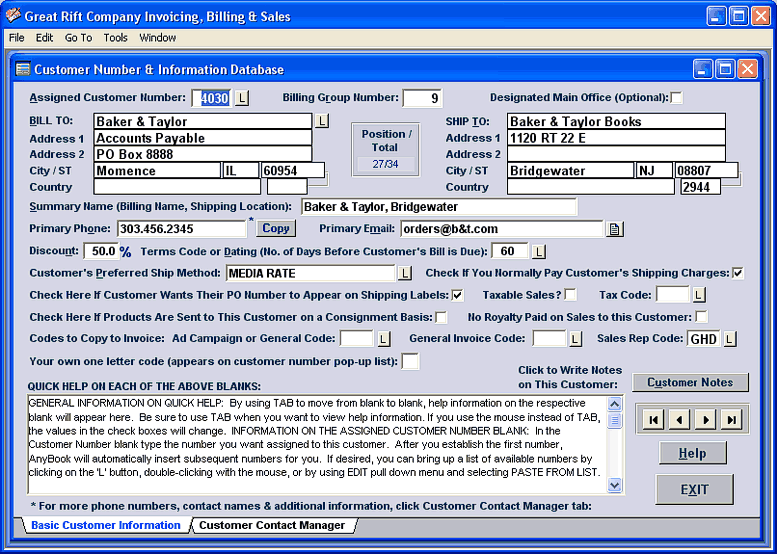
If you have regular customers, you'll want to enter them into the Customer Information Database. On the Customer Screen, you can enter the name of the customer, the customer's usual discount, etc. A help system has been built into the dialog box. As you use Tab to move from blank to blank, help information appears in the box on the bottom of the screen. It's helpful to have a database of your regular customers, but you don't need to enter all of them in the database. Unlike most order fulfillment software, AnyBook doesn't require you to do so. Many of your customers may be one-time or infrequent buyers. If that's the case, there's no sense wasting your time with extraneous tasks. All you have to do is to enter their name and address on the Main Invoice Screen. As long as they are on an invoice, you'll always have access to their address for mail lists, billings and other needs.
Note that Levels 2 and 3 have a smaller and more limited customer database. The screen shown
below is for Levels 4 and above.
If you have regular customers, you'll want to enter them into the Customer Information Database. On the Customer Screen, you can enter the name of the customer, the customer's usual discount, etc. A help system has been built into the dialog box. As you use Tab to move from blank to blank, help information appears in the box on the bottom of the screen. It's helpful to have a database of your regular customers, but you don't need to enter all of them in the database. Unlike most order fulfillment software, AnyBook doesn't require you to do so. Many of your customers may be one-time or infrequent buyers. If that's the case, there's no sense wasting your time with extraneous tasks. All you have to do is to enter their name and address on the Main Invoice Screen. As long as they are on an invoice, you'll always have access to their address for mail lists, billings and other needs.
Sample from the Customer Database
Contact Manager . . .
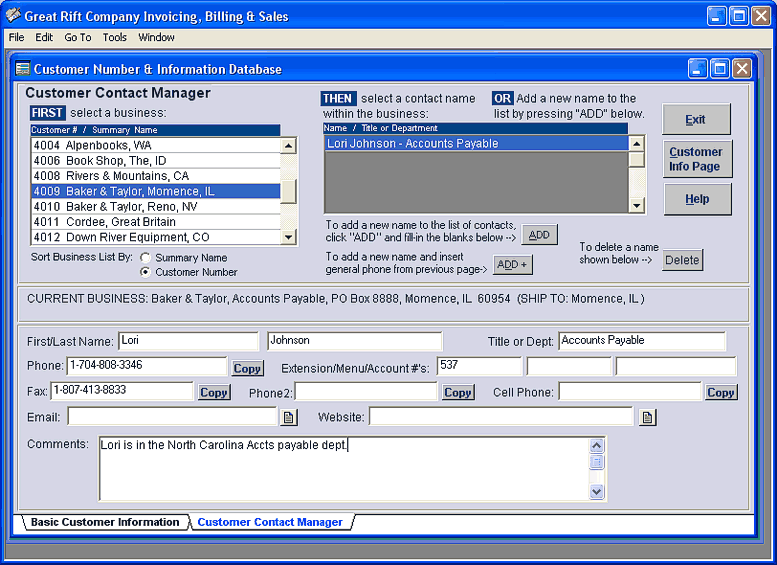
With the Customer Contact Manager you can keep track of customer names--or the names of individuals and departments within a corporate business--along with phone numbers, email addresses, etc.
It will automatically start your email program or Internet browser should you need to write a customer a note or visit their website. If you have the Advanced Edition, you can click on the "Dial" button and the phone number will be automatically dialed. The program will even automatically key-in extension numbers, menu choices or account numbers. With the Customer Contact Manager you can keep track of customer names--or the names of individuals and departments within a corporate business--along with phone numbers, email addresses, etc.
It will automatically start your email program or Internet browser should you need to write a customer a note or visit their website. If you have the Advanced Edition, you can click on the "Dial" button and the phone number will be automatically dialed. The program will even automatically key-in extension numbers, menu choices or account numbers. |