



Downloading & Installing AnyBook . . .
Installing the Program for the First Time
(If you are re-installing the program, see re-installation instructions)
Follow the procedure, below, to install the program for the first time.
Download the Program. First, you'll need to download the program. To do so, click on the appropriate link found here: Download Program
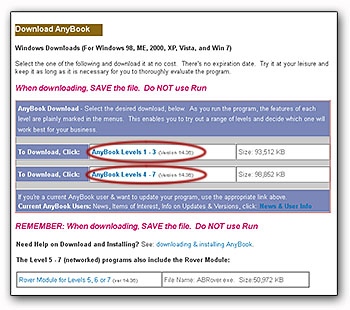 The file that you will be downloading will be named ab3pro14.exe, ab7pro14.exe, or similar. The file is called a self-extracting zip file. It's a compact zip file that contains all of the program and data files necessary to run AnyBook.
When you click on the download link, the download process will begin. At the this point, most browsers will ask whether you want to save the file or run it. Select the save option.
You'll be asked to save the file to a directory. Remember to which directory you save the file.
Activating the Download File. Once the download has finished, there are a couple of ways to activate the self-extracting zip file that you've downloaded. If you save it to your desktop, an icon will be placed on the desktop. Double-click on the icon to begin the process.
Or, if you saved it to one of your directories, you'll need to find that directory and double-click on the file name. How do you find a directory? One way is to use Windows Explore to view the directories on your computer. You can access Explore by RIGHT clicking on the START button and selecting "Explore" from the menu that appears. When you activate Explore, look through the directories and find the directory where download file (i.e. ab7pro14.exe) has been saved. Highlight the file, and then double click on it. That starts the process of installing.
 Installation Procedure. When you activate the download file as described above, a small dialog box will appear. Click on OK, and then on the next dialgo box, click on the "UNZIP" button. The zipped files will be unzipped and the main installation program will start.
Note that you will get an operating system message saying "Unknown Publisher." We have decided to opt out of the publisher program. It does nothing to protect users and it increases the cost of software. AnyBook has been fully tested and approved by at least a dozen different independent evaluators and you can assure that it is safe. Just continue past the message.
You'll be greeted by a license agreement. Read it over and make sure you agree with the terms. If you do, click on YES.
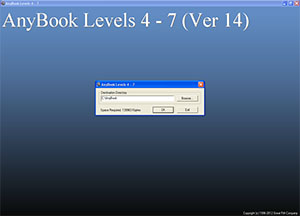 Following the license agreement is an introductory message. Click on OK.
At that point, you'll be asked to install the program to the directory: C:\AnyBook. We have retained C:\AnyBook so that it is compatible with past installations, but you can also use C:\Program Files\AnyBook or similiar.
NOTE: Always install AnyBook to its own directory such as C:\AnyBook or C:\Program Files\AnyBook. Never install it to a directory which is used by other programs. For example, you should never install it to the C:\ directory or the D:\ directory which are both used by many other programs.
Accept the directory, and the installation will run through to completion. When it's completed, you'll need to close out of a couple of dialog boxes to get back to the Windows desktop.
Installing the Program on a Network. The help documentation that comes with the program provides full and complete details on installing the program on a network. To reach this information, start the program and select HELP >> HELP CONTENTS from the menu and click on "Networking." Or you can access the same information from our on-line version of the help documentation.
One reminder when networking: make sure all of the computers running AnyBook are the same version. You can check the version number by selecting HELP >> ABOUT. You'll see something like Version 14.30. First check the existing computers. If they are running version 14.30, then any new workstations you add should be version 14.30.
Starting the Program. At this point, you'll see on the Window desktop an icon for AnyBook. To start the program, double click on the AnyBook icon.
The Levels. When the program opens, you'll see that several levels are combined into the same program. You'll be able to tell the difference between the levels. As you move to different parts of the program, you'll select from the menu at the top of the screen. The menu items have roman numerals: "I" to indicate Level 1, "II" to indicate Level 2 and so on. (If there's no roman numeral, then that feature is available in all levels.)
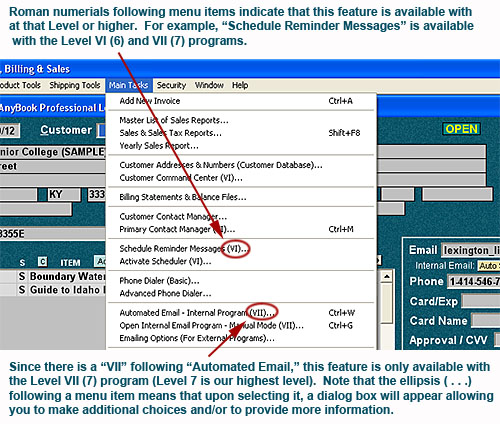
We have actually combined all of the levels into one program. The Level 1-3 installation package includes Level 4-7 features, but to simplify thing, those features are turned off. The Level 4-7 installation package has all features turned on.
Packaging the levels together in this manner is quite useful when you are evaluating the program. It allows you to try out various features and make an informed decision on which level will work best for your business.
For a comparison of features, see short & sweet comparison, or detail narrative, or comprehensive comparison charts.
Registering the Program. AnyBook is shareware. That means you can download the program and take all of the time you need to evaluate it. If you decide that it's not what you need, it can be uninstalled easily by using the uninstall program. No registration is necessary.
If you decide that you'd like to use the program in your business, you'll need to register it. To register the program, click on the registration link found on the "welcome" page that appears when you first start the program.
The evaluation version is the same as the actual program. You won't have to download another program - and you'll be able to retain any data that you have entered. (Unregistered programs have some limitations which makes them unsuitable for actual day-to-day business operations. However, once you register the program, those limitations are removed and you're ready move forward with full confidence.)
When you register the program, you will receive a registration code. There are two ways to enter the registration code:
1. Click on the "Enter Registration Code" button found at the bottom of the AnyBook "Welcome" page.
2. Or, select HELP >> ENTERING OR CHANGING YOUR REGISTRATION CODE from the menu on top of the Main Invoice Screen.
Note that the registration code is keyed to your company name. Make sure that the name is exactly the same as the company name that you provided when you registered. The spelling must be exactly the same. Abbreviations such as "Co," "Ltd," etc. must be the same. And punctuation must be the same (such as the period in "Inc.")
When you enter the correct registration code, you'll get a message saying "Thank You." The next time you start the program, you'll see the name of the program for which you've registered on top of the Main Invoice Screen.
AnyBook is another carefully crafted software program from:
 Great Rift Software
 Innovation, Excellence and Service